


Your cabinet on legal.ge is a single page with a sidebar: every screen below is a tab on it, so nothing is more than two clicks away. This guide walks through all of them — what each screen controls, and, if you work under a firm, which decisions are yours and which belong to your firm.
How the cabinet is organised
The sidebar groups your work the way a practice actually runs, rather than the way the database is arranged. Each group opens to reveal its screens, and a filter box at the top jumps straight to any of them.
At the top of most screens is a Specialist / Client switch. You may also book other lawyers or specialists yourself, and the toggle moves you between the two sides while staying on the same kind of screen — from your specialist inbox to your client inbox, rather than back to a home page. The client side only ever shows your own bookings.
Home: your ranking score
The Home screen is ordered by urgency. An activation checklist sits at the top while your setup is incomplete and disappears permanently once every step is done. Below it, Needs your attention lists live items tinted by urgency — money sitting in escrow, inquiries approaching their response deadline — each linking to the screen where you can act.
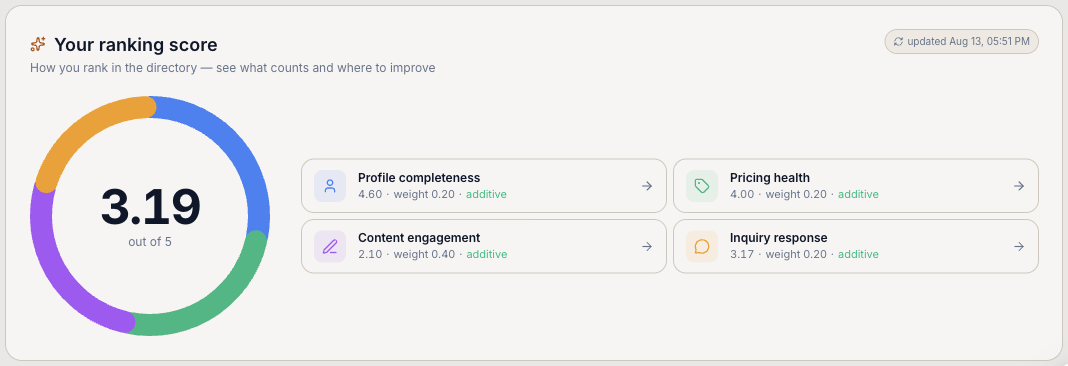
The centrepiece is your ranking score, the honest version of how the directory orders specialists. It is shown as a donut out of five, and every coloured arc is one metric’s real contribution: its weight multiplied by your value. Click a segment and you land on the screen where you can move that number. Metrics you score nothing on stay in the legend, greyed out, so the card also shows what you are leaving unclaimed.
Where the leverage is
Content engagement is weighted at double everything else. Publishing well-read articles moves your directory position further than any other single action available to you.
Inbox: one place for every client
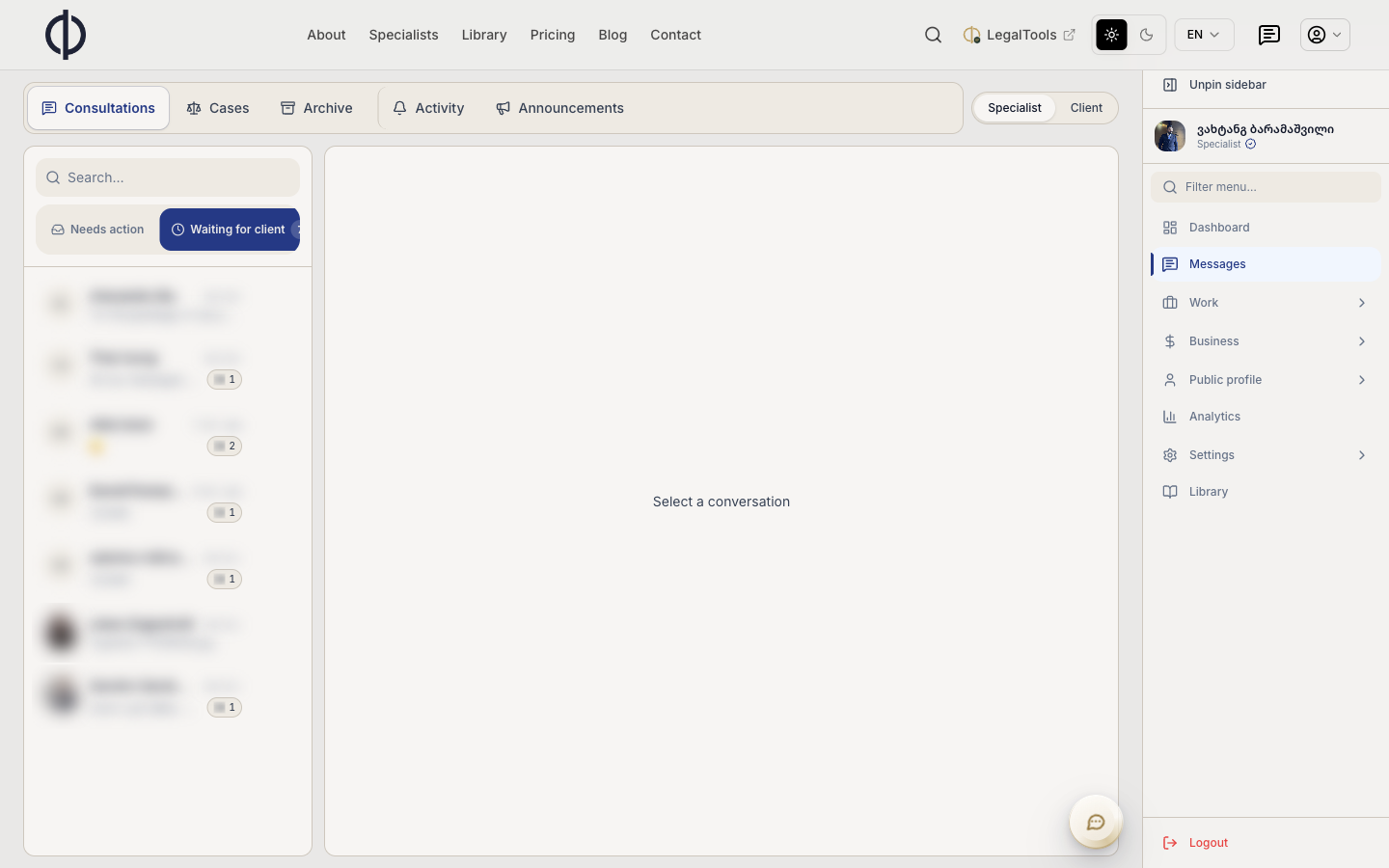
Everything a client sends you arrives in one inbox. Inquiries, case threads, system activity and platform announcements are folders here rather than separate screens, and the sidebar badge shows how many conversations are waiting on you.
How a consultation progresses
Every paid enquiry moves through the same states. Knowing them tells you whose move it is at any moment.
01
Pending quote
The client has asked; you have not priced it yet
02
Quote offered
Your price is with the client
03
Awaiting payment
Accepted, not yet paid
04
Prepaid
Money held; waiting on you to begin
05
In consultation
Work under way
06
Completed
Closed, and a payout follows
- Declined by specialist
- Declined by client
- Expired
- Suspended
- Closed
What you can do in a thread
- Send an offer — quote a price and scope, moving the thread to Quote offered.
- Book from chat — turn the conversation straight into a scheduled consultation.
- Open a case — promote the thread into a matter in your cabinet.
- Decline, with a reason — budget too low, cannot deliver, client unresponsive, emergency. Which reasons are offered depends on how far the work had gone, because declining after payment is not the same act as declining at intake.
- Archive — clear it from the active list without losing it.
Work
Consultations
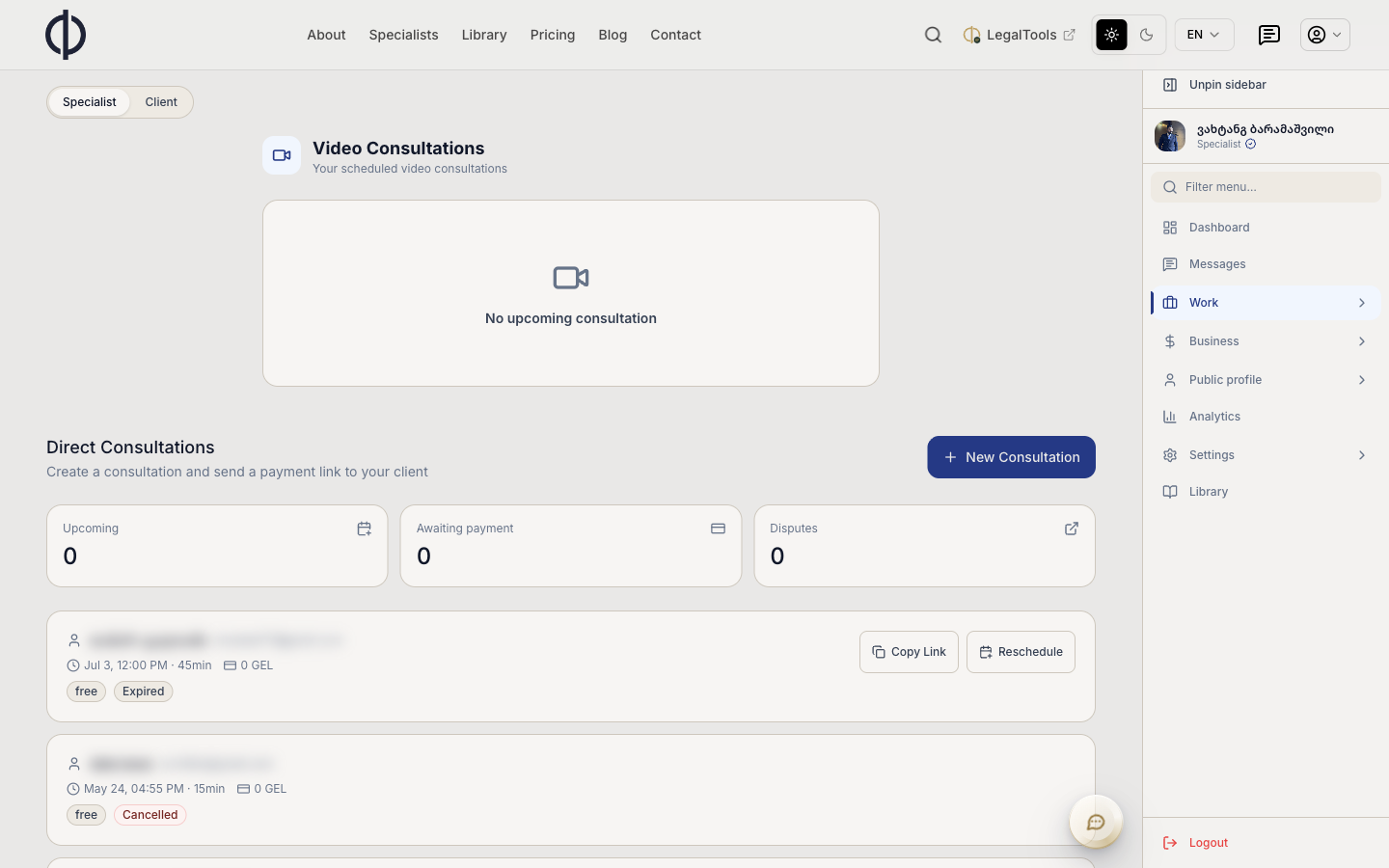
Your next scheduled video call sits at the top. Below it, Direct Consultations is the tool for work you originate yourself: you create the consultation and send the client a payment link, instead of waiting to be found through the directory. Row actions follow the state — copy the link or reschedule while a booking is live, and once it has completed, Open case turns finished advice into a tracked matter in one click.
Calendar
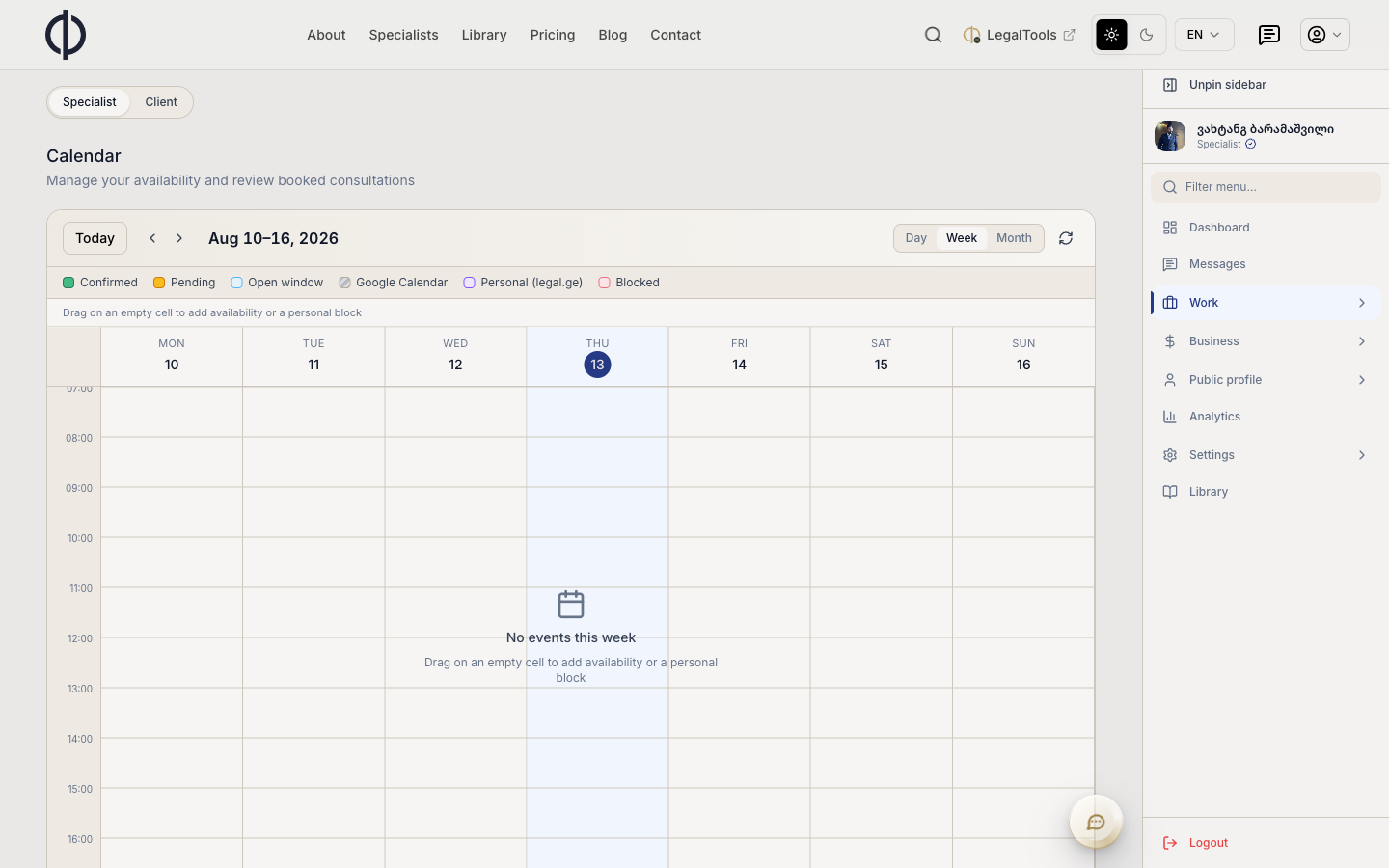
One grid for both viewing and editing. Drag on any empty cell to add availability, once or recurring, and click an existing window to block or remove it. There is no separate availability form to keep in sync. Colour coding separates confirmed bookings, pending ones, your open windows, personal blocks and events pulled in from Google.
Google Calendar sync is one-way
Confirmed legal.ge consultations are pushed into Google Calendar; nothing flows back the other way. Your Google events still appear on the grid as a reference layer so you do not double-book yourself.
Cases
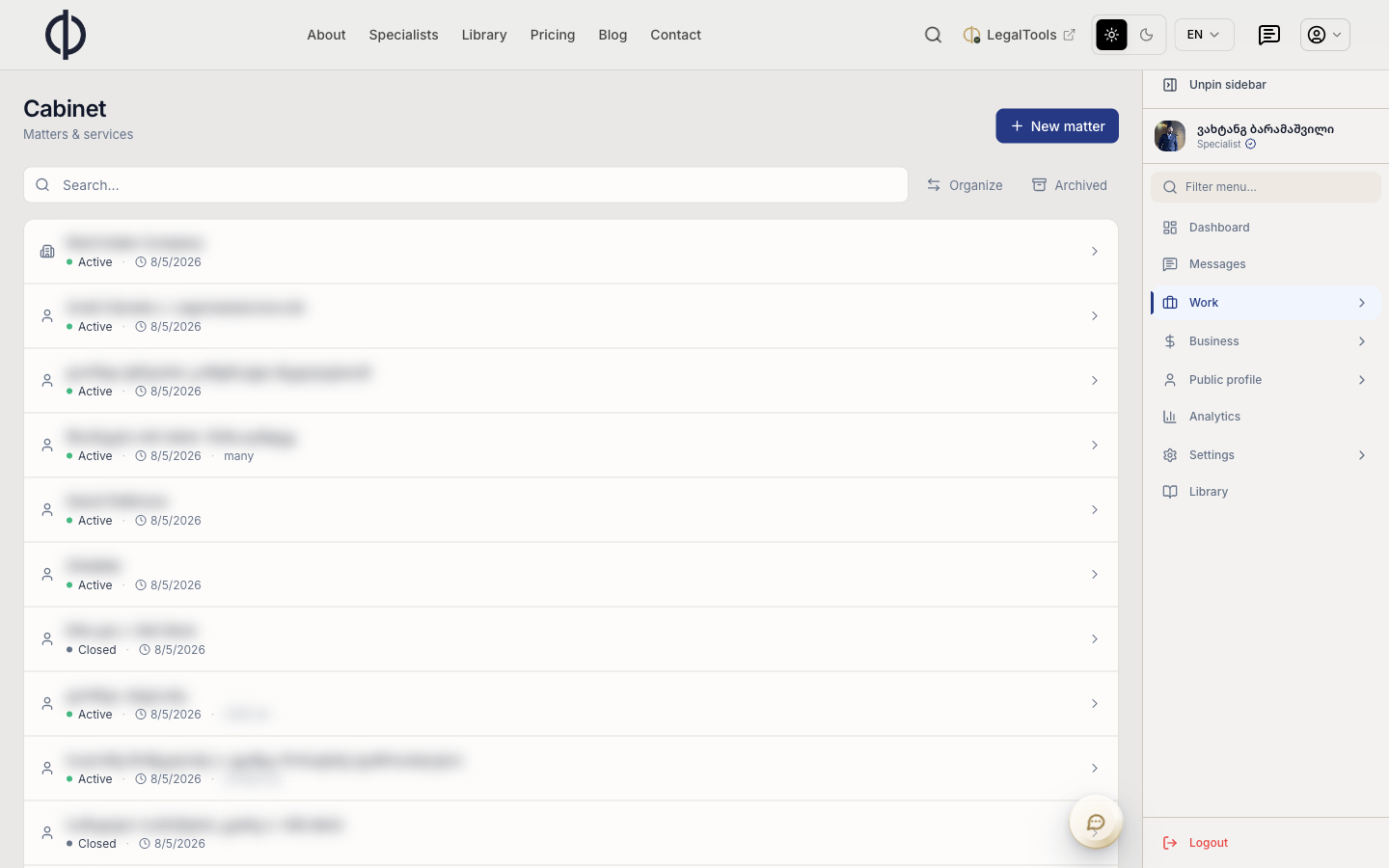
Your matter file. Each entry is a matter or service engagement with a status, a date and optionally a court case number. Create one directly with New matter, search across everything, reorder with Organize, and reach closed work under Archived. Consultations you promote with Open case land here too.
Events
Two sides: Attending for events you signed up to, and Hosting for events you run. Hosting is a small business in its own right, with its own sections for payouts, speakers, finance and analytics.
- Create event — trainings, seminars and webinars, with capacity and ticketing.
- Attendees — the registration list; you attest who actually attended.
- Certificates — issue certificates to the attendees you confirmed.
- Refunds — handle cancellations under Georgia’s Law on the Protection of Consumer Rights.
- Payout details and finance — where ticket money lands and what has been released.
Business
Pricing
The screen opens with your ranking signal out of 100 and the inputs behind it, so you can see the commercial consequence of a price before you set it. Below that sit your consultation defaults and the full catalogue of your services.

The one thing people get wrong
A consultation price can live in two places. There is a profile default — the price shown on your public profile, used by any service that has no price of its own — and there are per-service prices, which override it. Both are real, and neither is derived from the other. If your profile shows a price you did not expect, it is the default you are looking at.
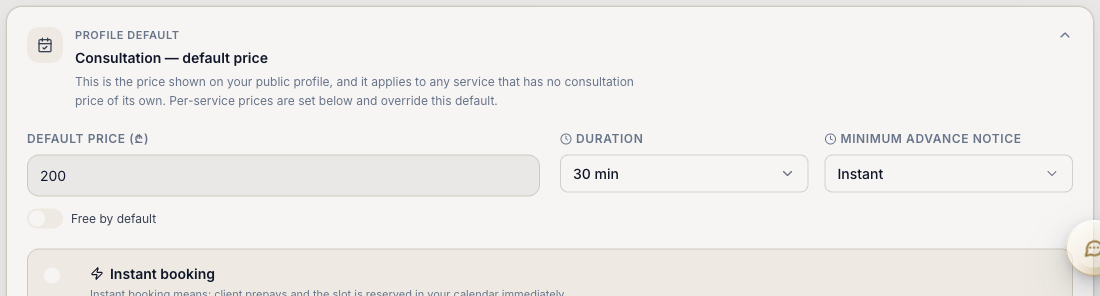
- Instant booking lets a client prepay and take a slot in your calendar immediately. It has one prerequisite: at least one open window in your calendar. Set your pricing and your calendar in that order.
- Free by default offers a first consultation at no charge.
- Bulk actions apply a pricing template, or set a consultation rate across many services at once — essential with a large catalogue.
- Market context shows what comparable specialists charge, so a price is a decision rather than a guess.
- Leaving services unpriced costs you directory position: pricing health is a ranking input, not just housekeeping.
Earnings
What the platform owes you and has paid you, with gross, fees and net kept separate rather than blended into one figure.
- Recent payments — a line per payment with date, type, amount, fees deducted and net to you.
- Active holds — money captured but not yet released.
- Dispute debt — amounts that will be netted off future payouts if a dispute goes against you.
- Payment details — the bank account both an invoice and a payout depend on. If it is incomplete, payouts stall.
Invoices
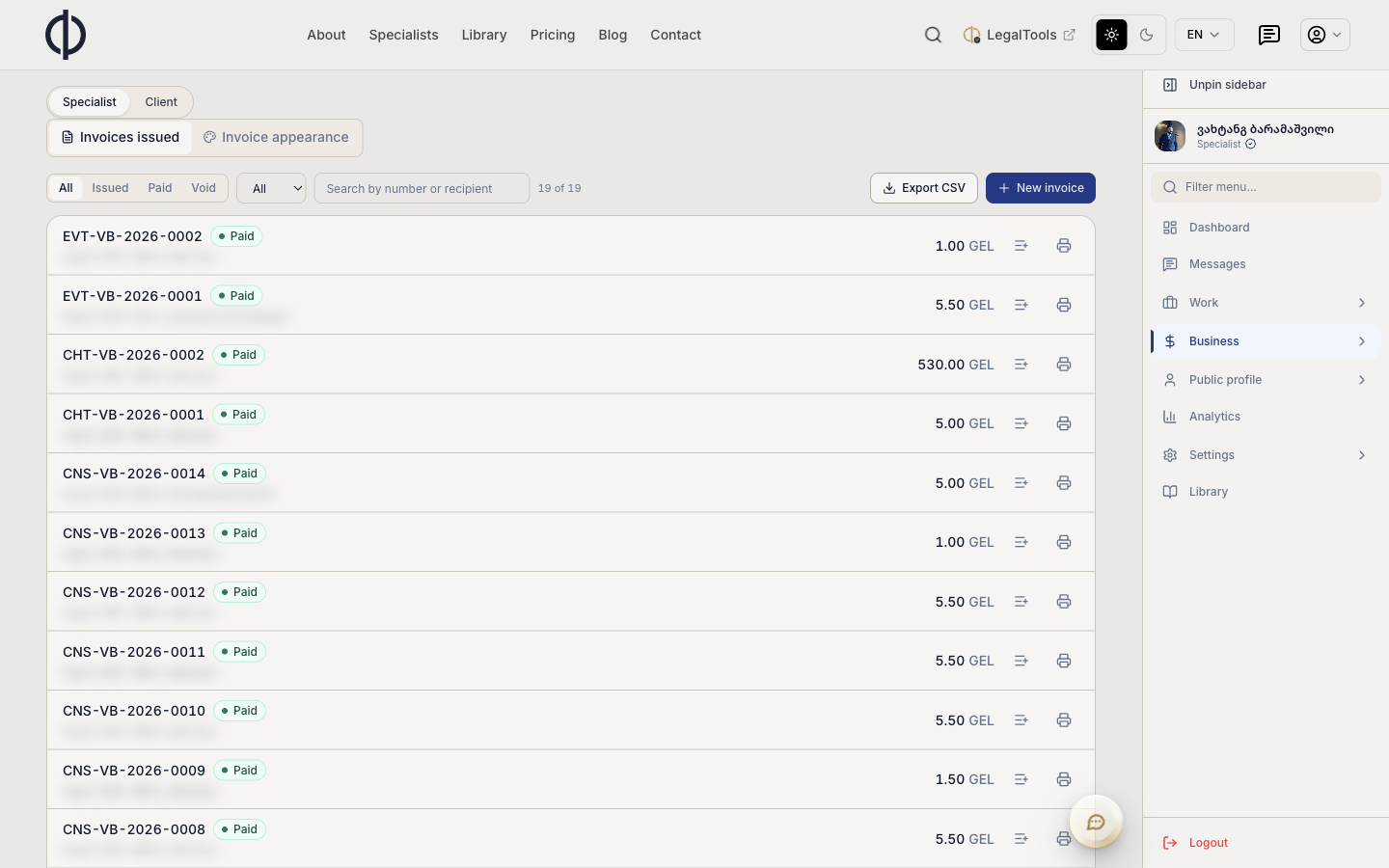
Documents you issue — the counterpart to Earnings, which is what the platform paid you. Filter by status, search by number or recipient, export everything to CSV, and print or send any single invoice. Numbering encodes the source, so a consultation, an event ticket and a chat each carry their own prefix. A separate Invoice appearance tab controls how your documents look.
Subscription
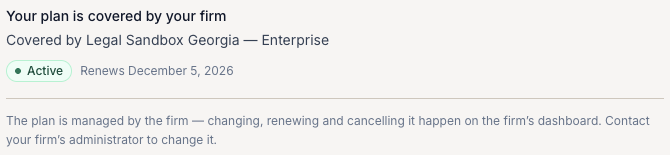
If you work under a firm, you still hold a subscription — it is simply paid for by the firm, in whole or in part. You can see its status and renewal date, but choosing, renewing and cancelling the plan happen on the firm’s dashboard. Independent specialists manage their own plan on this screen.
Your public profile
Everything a prospective client can see before they contact you lives in one group.
Two things worth knowing
Your star rating stays hidden from the public until you clear a minimum number of reviews, so early feedback cannot define you. And while name and text fields exist in all three languages and can be auto-translated, a blank English or Russian bio is not filled in from Georgian on your public page — if you want clients in those languages, write for them.
Analytics
One screen answering a single question: how am I doing? Response rate and SLA adherence are the two that feed both your ranking and your reputation, and they measure different things — whether you answered, and whether you answered in time.
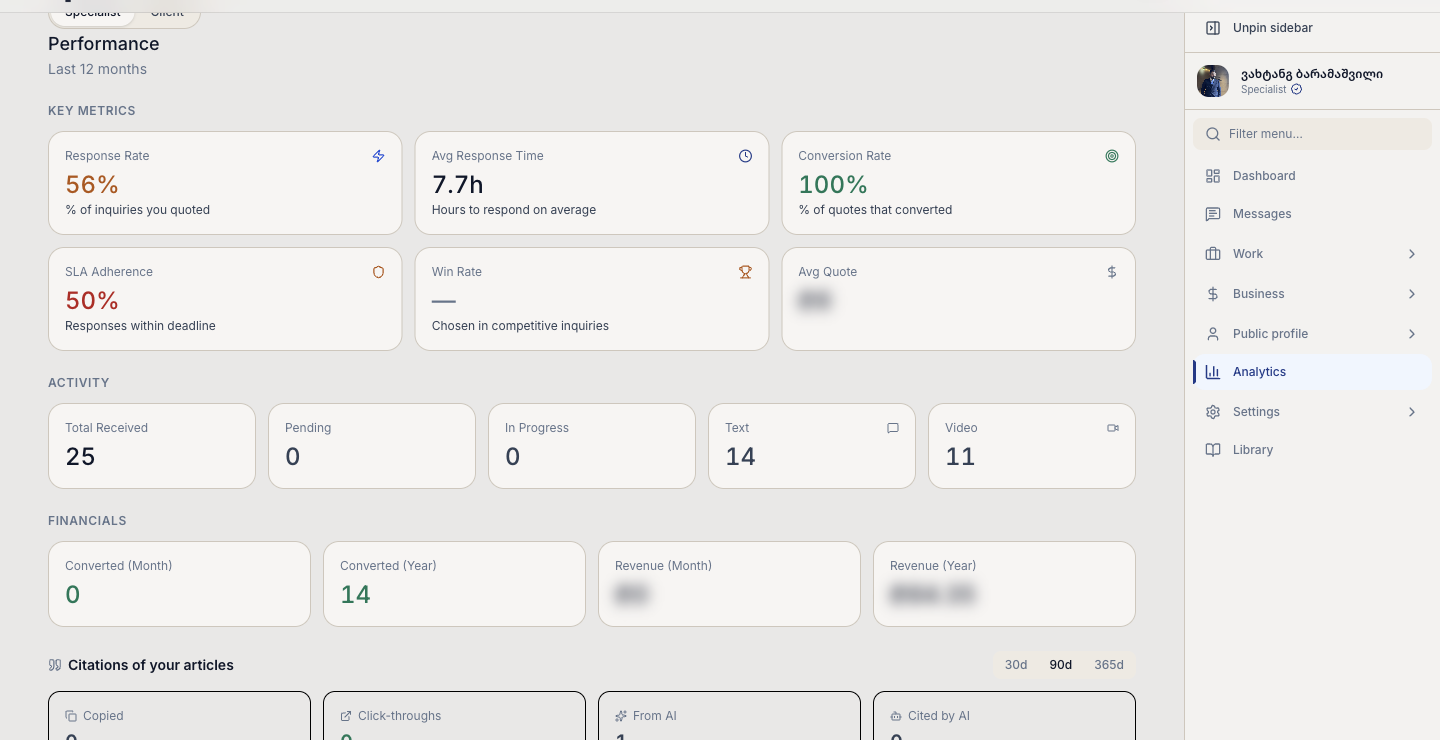
| Band | What it shows |
|---|---|
| Key metrics | Response rate, average response time, conversion rate, SLA adherence, win rate and average quote |
| Activity | Inquiries received, pending and in progress, split by text and video |
| Financials | Converted work and revenue, by month and by year |
| My rating | Quality, content, client and trainer scores, earned badges, and a visibility percentage |
| Audience | Profile views, contact clicks, CTA clicks, impressions and CTR over 7, 30 or 90 days, broken down by device and language |
| Post statistics | Your articles ranked by reactions and views, and the content score they produce |
Citations of your articles
A reader can select any passage in your article and copy a ready-made quotation — carrying your name, the title and the date — together with a link that opens the article directly at the sentence they quoted and highlights it. This block, with its own 30, 90 or 365-day window, counts what happens next.
Of the four, click-throughs is the one that also appears on your public profile. Copies are deliberately not published: a figure anyone could inflate by quoting their own work would be worse on a credibility page than no figure at all.

What these numbers can and cannot see
From AI counts arrivals from ChatGPT, Gemini, Perplexity, Claude and Copilot, so it is a floor rather than a total — an assistant that cites you without the reader clicking through stays invisible. Cited by AI covers ChatGPT, Claude, Perplexity, Mistral and Meta; Google and Copilot publish no such signal, so their citations cannot be seen at all. The pattern behind all four is the same: the more precise and concrete an article is, the more often it is quoted — by readers and by assistants alike.
Short links
Links to legal.ge pages are now short. Instead of a long address you get one in the form lgl.ge/AbC123, which is easier to paste into a message, a document, a footnote or printed material.
Where a short link can point
A short link only ever resolves to a legal.ge page — the domain cannot be pointed anywhere else. A few places still give the full address, such as sharing an entire law rather than a single article, and links carrying a payment or ticket credential are deliberately never shortened.
Settings and your data
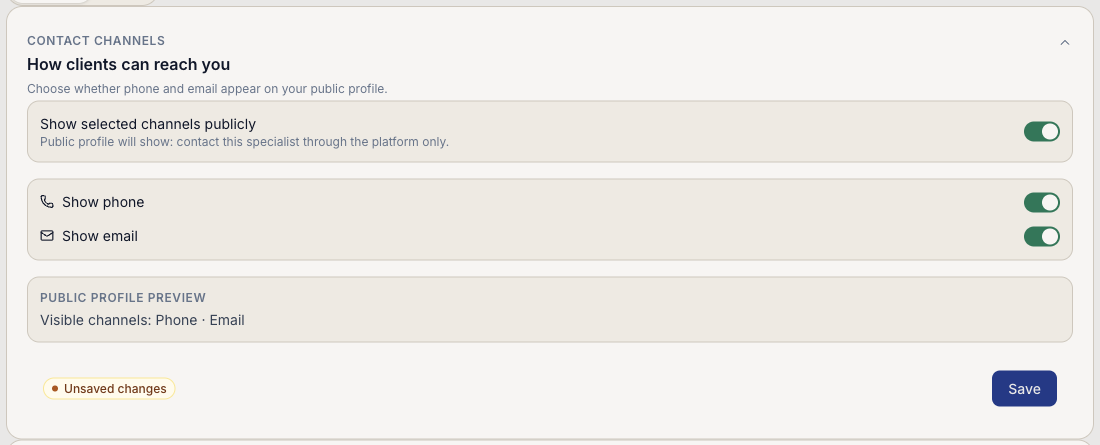
Settings covers how clients reach you and how your account behaves.
- Contact channels — a master switch plus one toggle each for phone and email. With the master off, your profile tells clients to contact you through the platform only. A live preview states exactly what will be visible before you save.
- Sign-in methods — email and password, Google and Apple can each be linked or unlinked, and another account can be merged into this one.
- Email notifications — switch per topic: inquiries, cases, reviews, billing, events, account, news.
- Notification language — Georgian, English or Russian, independent of the language you browse in.
Your agreements and your data
A versioned history of every policy you have agreed to, with dates, and the ability to view or revoke each one. Alongside it sit your data-protection rights: download a JSON file of every record held about you, or delete your account, which is erased after a 30-day grace period.
You and your firm
If you work under a firm, this is the most common source of confusion. The line runs through ownership, not visibility — you can often see something you do not control.
| Area | Yours | Your firm’s |
|---|---|---|
| Subscription | See status and renewal date | Choosing, renewing and cancelling the plan |
| Cases | Personal cases stay with you, including if you leave | Firm cases sit in your cabinet only while you are employed |
| Clients | A read-only roster of clients on your personal cases | Client accounts, invitations and access requests |
| Pricing | Your default and per-service prices | — |
| Public profile | Bio, specializations, contact visibility, articles | Verification at the firm-review stage |
| Earnings | Your payouts, holds and payment details | — |
What can lock you out
If a menu item is missing or greyed out, it is almost always one of three things, and none of them is a fault.
Verification
Publishing articles unlocks only once the platform has verified you. Until then your Home screen is replaced by an approval timeline showing which stage you are at.
Plan limits
Cases, articles and specializations can each be limited by the plan covering you. A locked item still appears, marked, and leads to the subscription screen — where, if a firm covers you, the answer is to speak to your administrator.
Nothing to show yet
Some screens are hidden until they have content — the personal client roster only appears once you hold at least one personal case, rather than opening an empty page that looks broken.
Prepared by Legal Sandbox Georgia. Screens and wording may change as the platform develops; where this guide and the product disagree, the product is right.

